Are you working on a paper for class, or looking ahead to final papers in your courses? If so, you may want to enlist the help of Writing Tutorial Services. WTS is available free of charge to students, and provides both hour-long consultations by appointment in their Ballantine office and half-hour help sessions in a walk-in atmosphere in Academic Support Centers on campus.
You can find more info and see how to make appointments on the WTS website. In addition, there are several pamphlets on writing issues like plagarism, creating an effective thesis statement, and using evidence and sources.
Showing posts with label how-to. Show all posts
Showing posts with label how-to. Show all posts
Monday, November 16, 2009


Thursday, January 22, 2009
eDrop and eAdd
At this point, the waitlist has dissolved and if you want to adjust your schedule, you will need to use eDrop/eAdd via OneStart.
If you need help, the Office of the Registrar made these great screen print-out instructions:
For eDrop: http://registrar.indiana.edu/pdfs/eDrop.pdf
For eAdd: http://registrar.indiana.edu/pdfs/eAdd.pdf
For all late drop and late add procedure, please refer to the registrar’s guidelines: http://registrar.indiana.edu/dropadd.shtml#late
If you need help, the Office of the Registrar made these great screen print-out instructions:
For eDrop: http://registrar.indiana.edu/pdfs/eDrop.pdf
For eAdd: http://registrar.indiana.edu/pdfs/eAdd.pdf
For all late drop and late add procedure, please refer to the registrar’s guidelines: http://registrar.indiana.edu/dropadd.shtml#late
Wednesday, January 14, 2009
How to Find Your Advisement Report
1. Go to onestart.iu.edu.
2. Log in.
3. Click "Student Self Service."
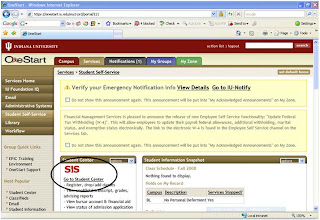
4. You should see this screen. Click on "SIS Go to Student Center" (circled below)
5. Once you've clicked that, you should see this screen and click "My Academics & Grades."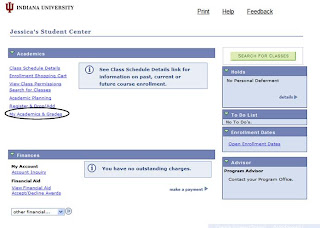
6. Once you've clicked that, you should see this screen. Click "View My Advisement Report."
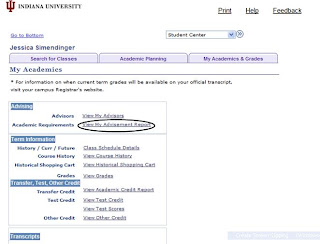
7. Once you've clicked that, you should see this screen. Select "Bloomington" and "Degree Progress & Transcript" from the given drop boxes (as selected and circled below). Then click "Go" and you should arrive at your Advisement Report. Make sure to select Expand All so that all of your information shows on the report. Please print and bring to all of your advising appointments!
2. Log in.
3. Click "Student Self Service."
4. You should see this screen. Click on "SIS Go to Student Center" (circled below)

5. Once you've clicked that, you should see this screen and click "My Academics & Grades."

6. Once you've clicked that, you should see this screen. Click "View My Advisement Report."

7. Once you've clicked that, you should see this screen. Select "Bloomington" and "Degree Progress & Transcript" from the given drop boxes (as selected and circled below). Then click "Go" and you should arrive at your Advisement Report. Make sure to select Expand All so that all of your information shows on the report. Please print and bring to all of your advising appointments!

Subscribe to:
Posts (Atom)